


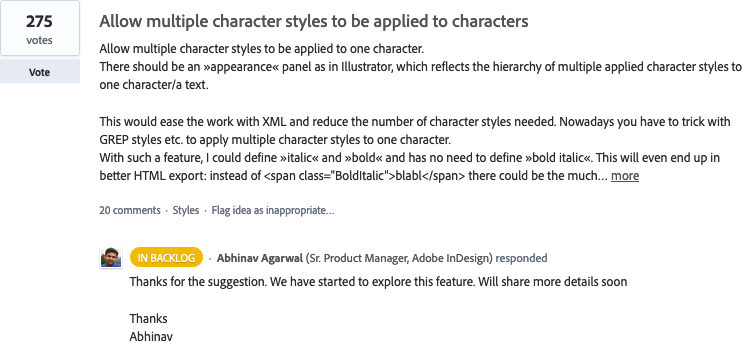
There may be occasions where more than one character style has to be applied to the same words, such as a highlight, italic, etc. I recently saw this request over at the InDesign requests page.

In the request, the requestor does hint at a way that this can already be achieved in InDesign, though it can be time consuming. Let’s start from the beginning and look at some text that has an italic character style applied to it.

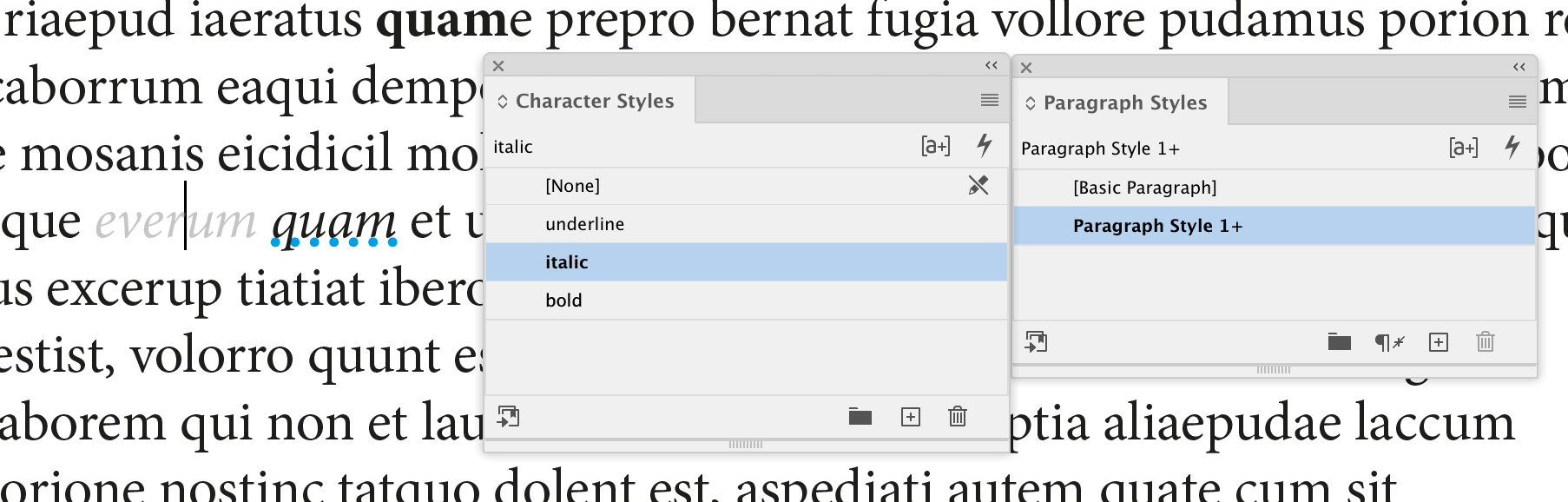
But if I apply a separate highlight character style that I’ve also made…

The highlight appears but the italic is removed. Reapplying the italic character style to the word only changes the word back to italic and doesn’t preserve the underline.
One solution is to do a local override – that is to manually apply the appearance but without using a character style

That works, but let’s say that the client asks for all italics to now be a tint of the colour initially used. That’s fine if character styles were applied as the italic style needs to be changed once in the properties of the character style. However, all the italics applied using local overrides will need to have their fills reapplied with the new settings.
Yes, the eyedropper tool and find/change can assist, but if character styles were applied, these additional steps would not be necessary.
In this circumstance, making a third style that has both the underline and italic would make sense.
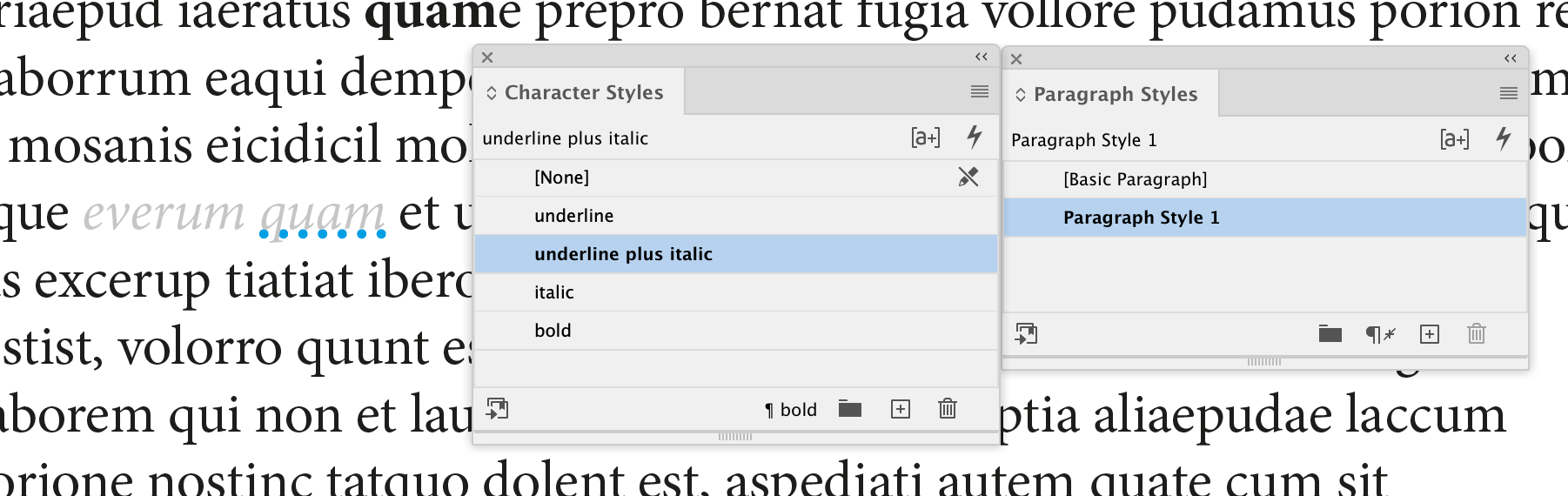
In this case, it adds one more character style – not a big deal, but in a large document, the quantity of character styles can grow fast.
GREP Styles to the rescue
Take this chemical equation in a science textbook. It currently looks like this:

The subscripts in this equation have been applied with a character style that I’ve named sub. However, the author wants the reaction only in bold. If the equation is highlighted and then has a bold character style applied, this happens:

All of the subscript formatting of the numbers are lost.
I can then create a second style called “bold sub” that has bold and subscript properties and base the style on the bold formatting, but I then have to make sure I correctly apply the newly created style to the appropriate numbers… this now introduces a level of human error.
But what if I could apply the bold style and keep the subscripts? It is possible using GREP styles. Using the GREP code from this CreativePro post (look for Laurent Tournier’s post dated Oct 9 2010 in the comments) apply it to the paragraph style.

[editor’s note – I’ve adjusted mine to account for the naming of elements 113-118 as of 2018, so if you want that amended code, contact me via my contact page]
Now apply the paragraph style to the recently bolded text.

Brilliant! Note how the I-beam cursor is between two subscript numbers, yet the character style shows that this is bold only.
This technique can also be applied to other formatting where subscripts or superscripts need to be preserved, such as:
- Ordinal Numbers
- Numbers written with scientific notation
- Squared or cubed measurements

It just requires the right GREP syntax. All of the above examples used GREP styles to format the subscripts and superscripts only. To learn this technique and others, apply to join the Treasures of GREP Facebook page.
Once again to illustrate the point, the author wants these six lines in bold. By highlighting the lines and applying the bold character style, the subscripts and superscripts stay in tact.

Nested styles
Similarly, this can also be achieved with Nested styles. Take the last two lines in the last example prior to applying the bold – if I want the ordinal number at the start of the line to be bold, I don’t have to write a GREP style but I can use a nested style such as the one below.
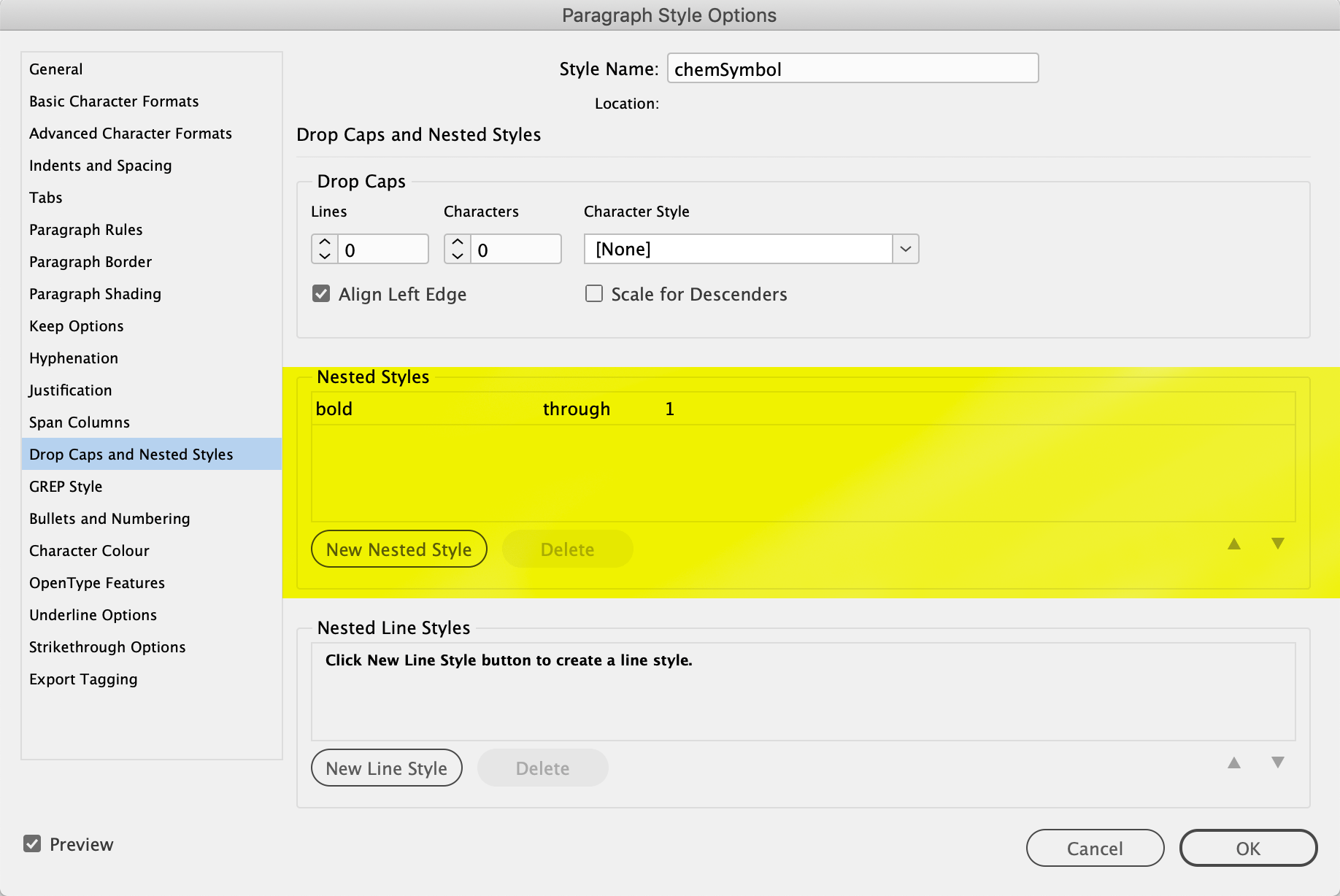
That will give me this result without applying any manual character styles to the text:

There are catches to this technique
The first catch is that the character styles must have the minimal amount of style changes only. That is the sub character style only changes the position of the character to subscript, so that is the only item that style will apply, while maintaining the rest of the paragraph style’s formatting.

The second catch is to be aware of the style hierarchy. The following list is in order of what style overrules another (from most to least dominant):
- Local override
- Local character style
- Nested style
- GREP style lowest in list in the paragraph style settings
- GREP style highest in list in the paragraph style settings
There can be several advantages to layering character styles by using GREP styles:
- Less character styles.
- Time saving for commonly formatted items such as ordinal numbers.
- Consistency based on GREP patterns for words.
Similarly, there can be drawbacks with this technique:
- Looks for particular words or phrases, so not appropriate for instances where dozens of words or phrases may make more GREP styles than are manageable.
- Applies to paragraph styles, if used over many paragraph styles, the GREP style needs to be applied repeatedly. Scripts can help with this, such as one I wrote on my scripts page, or GREP Editor from Peter Kahrel.
- Can’t take a bold style and italic style and combine them – it can only apply additional attributes that weren’t there previously.
- GREP styles (along with live preflight, page thumbnails, dynamic spellcheck and any other service that has to run while the document is being composed) can slow the processing speed of the machine, particularly on larger documents.