


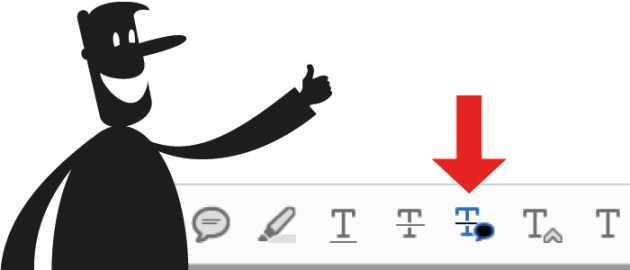
In early July, I prepared a video for my employer that demonstrated how to mark up a PDF correctly, primarily how to use the commenting tools. This came about as a direct result of the Adobe Acrobat team removing certain icons from the comment panel, meaning that many of my customers had to be re-trained on how to mark-up PDF proofs that they were sent. Since July 12, the Acrobat team has decided to return one of the icons it had removed from the comment panel, but still pushes for the use of the blue arrow tool to make additions, deletions or replacements of text. I’m happy that the icon has returned, but frustrated that it was removed in the first place.

This is important because PDF mark-ups can use the annotations workflow that works like this – simple comments are taken into Acrobat using the comments tool and then imported directly into InDesign using plug-in software available from DTPtools. Here is a link to a video of the workflow in action – it effectively takes the mark-ups that were made in the Acrobat file into the ID file, and these mark-ups can be accepted or rejected in a similar fashion to revisions made in Microsoft Word.
There will be occasions that alterations outside of the scope of the annotations workflow will have to be made, but I would encourage anyone who has been asked to mark-up a PDF for their printer to please read these suggestions:
Use the Adobe Acrobat Reader
Yes it is possible to mark-up a PDF in other software such as Preview (Mac) or in some browser plug-ins, but for the mark-ups to save and be interpreted correctly by the DTPtools annotations plug-in, please use the Adobe Acrobat Reader.
Mark-ups only please
That being said, please do not:
- attempt to make the changes live in the PDF, but instead use the commenting tools only. This means staying clear of the typewriter tool and only using commenting tools, namely the blue arrow tool to make deletions, additions or replacements (or use the classic icons); highlight or sticky note.
- open the file in Microsoft Word and save it back as a PDF. This can make it impossible to tell the distinction between the two files and will result in the artwork being set up again from scratch.
- print the PDF and then mark it up in pen, scan it to a new PDF – this will quite clearly not work with the annotations workflow.
- add or delete pages from the PDF. If pages need to be deleted, use the mark-ups to indicate this. Likewise, if pages need to be inserted, use the sticky-note tool to inform the operator that pages need to be inserted.
Good instructions
- Delays and misunderstandings because of unclear instructions = $. This will result in a new proof that will no doubt contain misunderstood edits will need to be corrected, resulting in further proofs, chargeable time, delays and frustration.
- Make sure your instructions are so clear that edits are easily understandable by anybody. Even if you have had a conversation with someone about the alterations to be made, never assume that the person making the alterations will be the person you had a conversation with.

When working in groups
- Make a distinction between comments intended for collaborators and authors; and comments intended for a printer. Collaborators generally know what is being referred to, but prepress staff are making changes only, so make sure that the instructions for the printers are easily understandable. Any notes, such as opinions (e.g. I don’t like that font), or topic specific queries (e.g. need to fact-check this statement) really should be between collaborators and authors.
- “Duelling banjos”. If collaborators can’t agree on specific alterations, don’t take it out on the prepress operator – they are doing what they are told to do in the PDF. If there is a dispute between authors about what does/does not need to appear in the publication, resolve that prior to submitting the PDF to the prepress operator for changes.
- When collaborating, make sure each collaborator is either looking at the SAME PDF, or the same COPY of the PDF, and that changes are submitted at the same time rather than staggered. There is a great video that specifically deals with collaborating groups here.
Think about the practical application of the mark-ups
- Have realistic expectations of the edits. For example, supplying a 5 page word file with the instructions “fit on 1 page” is unrealistic.
- Understand the implications of changes. For example, pages that are designed to work as readers’ spreads will be jeopardised if an instruction to shuffle pages forces the spread to break… a segue to this issue…
- Shuffling pages… Again this can be quite confusing, especially if LOTS of pages are being shuffled around. Remember that shuffling pages can also break pages that are meant to appear together, such as pages set up as readers spreads. Make sure that the new order of the pages is clear to avoid any confusion.
Ultimately, a well marked-up PDF proof can result in more reliable changes being made faster and on-time.