


…but i’d STRONGLY advise against it!
impositions should ALWAYS be prepared by the printer.
This article is really written to illustrate the power of InDesign’s Data Merge feature. See this article for more reasons why NOT to impose files for your printer or provider.
Data Merge can be used for so much more than simply adding someone’s name to a piece of direct mail, so using Data Merge to do something as powerful as page imposition is quite a task.
I’ve prepared five examples which are all downloadable PDFs with the attachments inside the PDFs. I won’t go into great detail but would recommend downloading the PDFs, saving the attachments, and reverse-engineering what I’ve done.
In most examples, the text files for the merge are typically made in Microsoft Excel unless stated otherwise. To also help people unfamiliar with Excel to make spreadsheets without too much frustration, note that:
- References to pictures must have an “@” sign in the header row. For Example:

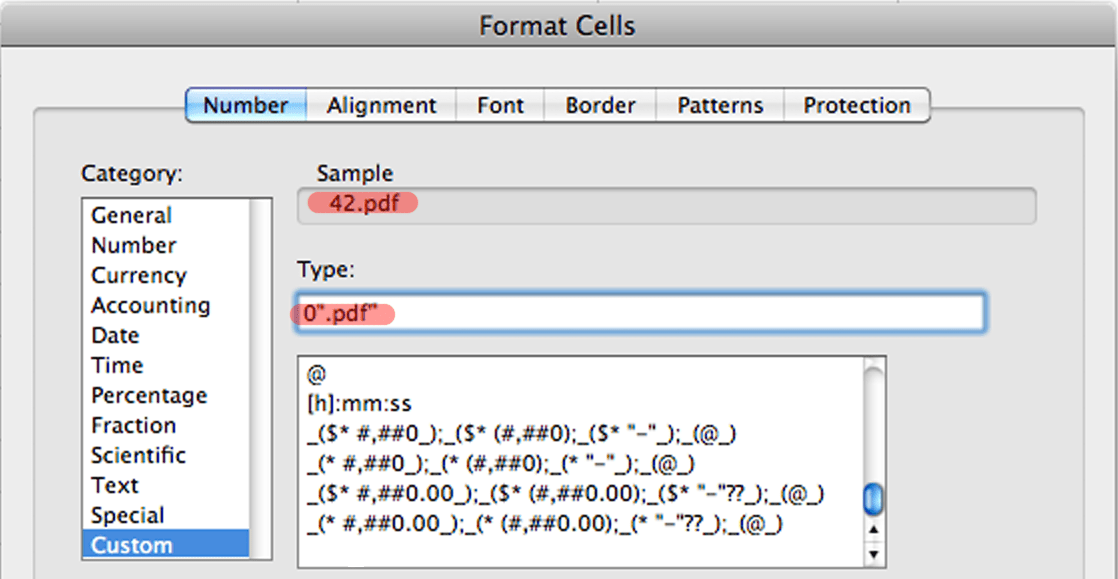
- To easily have a number so that it has a file reference at the end without endless errors of #VALUE or #NAME appear, make sure that the numbers are actually numbers (not text) BUT in the formatting, make sure that this formatting is adopted for the cells which are to be picture references:
- * To make sure that no “missing picture” errors appear when making the data merge in InDesign, make sure that the data text file AND the links being referred to are in the same directory; or referred to with their full path. Having the links in the same directory as the text file ensures that if the folder is moved from one machine to another, that the links will still be accurate.
In every example, the books or tickets being imposed have been broken up into single pages. This can be done in two ways:
1) From Acrobat and Bridge, once a PDF is made
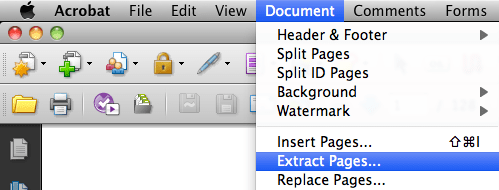
- select Extract Pages from the Document Menu of Acrobat
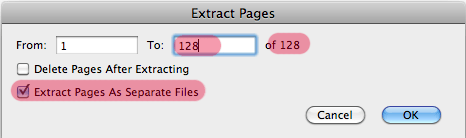
- make sure that the total amount of pages are extracted (in this example there are 128 pages) and that “Extract Pages as Separate Files” is ticked on, and click OK. A window will prompt for a folder to save these files in, make sure to put them in a new folder (nothing like cleaning up 128 files off of the desktop!)
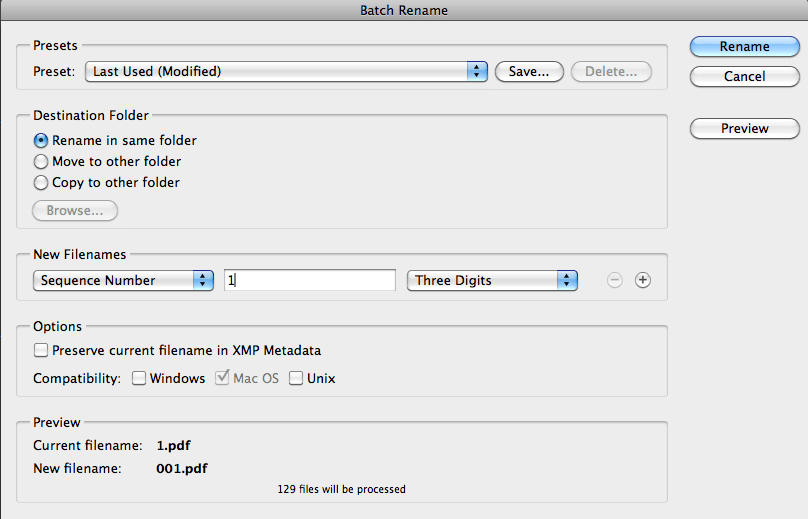
- go to Bridge and navigate to the folder where the single page PDFs have been extracted. Select all of the documents and then select “Batch Rename…” from the Tools Menu of Bridge.

- In the New Filenames portion of the dialog box, make sure Sequence Number is selected, starting from the number 1, and then with the appropriate amount of digits for the amount of pages being extracted (there are 128 pages in the example, so three digits is appropriate) and click OK.
the PDFs will now be numbered 001-128.
2) From InDesign, using the Page Exporter Utility (PEU) Script by Scott Zanelli.
- Go to this site and download the script, making sure to read the instructions. This is a very powerful script which will extract not only as single page PDFs but also EPS or JPG, but read the instructions – everything to detail how to extract the pages appropriately are spelled out in the instructions.
So onto the Five Examples:
1) Printers pairs with no bleed.

This is the easiest one. It assumes a 128pp A4 size book will be prepared as A3 printers pairs for printing on a copier. To do this, i’ve made two A3 landscape pages in InDesign and each page has two placeholders for variable data images. The variable data itself references the pages by the filename given to each page number (e.g. page 14 would be 14.pdf).
2) To impose for Printers Pairs – with bleed.

Essentially similar to the printers pairs with no bleed, but a big exception is that the pages being referenced have bleed. To compensate for the spine so that the bleeds don’t overlap, the picture references for the data merge have been “Pasted Into” other frames so that only the bleed on top, bottom and foredge is visible.
3) To N-up one page to two (or three, four etc).

Similar to the printers pairs with no bleed, the only exception being is that the same picture references is used over again to n-up the pages as required (in the example, this is 2-up). Rather than use Excel to make the data for the Data Merge, a javascript called “Images to CSV” was used. To download the script and find more, go to this link.
4) For Cut & Stack impositions.
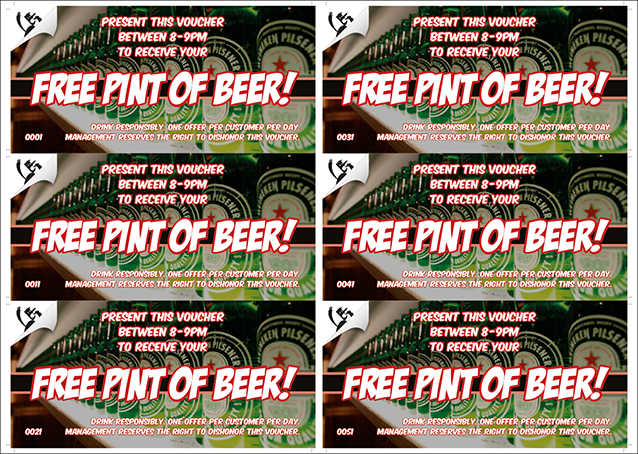
At the time of writing this piece, I truly thought this was an original idea and that I was the brainchild, but no, a you-tuber has beaten me to it. See that video here.
A cut and stack imposition is an imposition which generates pages which, when printed in a stack, are in the correct sequence so that once the stack is cut, will result in single page stacks in correct page sequences.
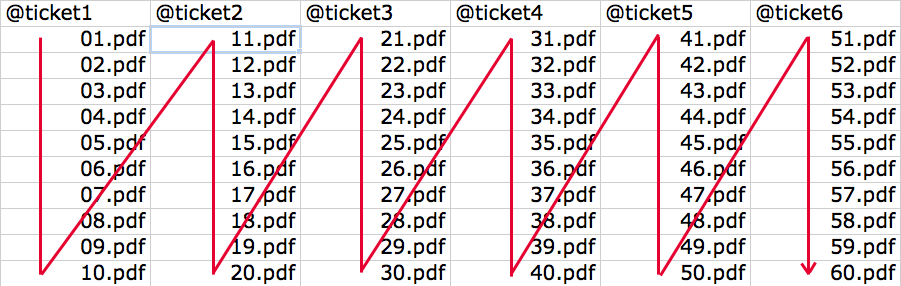
My method is effectively the same – create an InDesign file with however many placeholders are necessary (in the example, that is six) and in the Data Merge file, make sure that in Excel, the sequence numbers for the placeholders represents their position in InDesign.
5) For Burst Bound impositions.

Similar to the Cut and Stack imposition except that in this example, a 16pp conventional fold, sheetwork printed sheets are what is being merged here. This assumes that the 128pp book will be printed entirely in consecutive 16pp sections. It also uses the trick from the printers pairs with no bleed in that the page references are pasted into other frames to prevent the spines overlapping each other.
So, that’s using Data Merge to do impositions. But as I said before…